Showing posts with label Google Music. Show all posts

Google Play Music Integrates With Sonos

Donal Trung 10:46 AM Add Comment
A few months ago, I was about to buy 2 Sonos wireless speakers, but I realized that Sonos doesn't support Google Play Music. That was unfortunate, especially considering that Play Music doesn't even have a public API. The good news is that Google Play Music now integrates with Sonos.
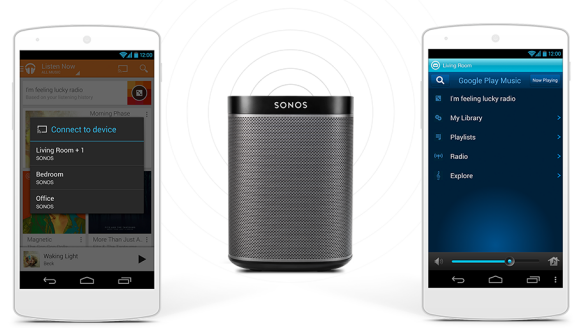

"Now available around the world, you can stream directly to Sonos from within the Google Play Music app on your Android device, or simply stream Google Play Music from your Sonos app to any Sonos player throughout your home," mentions the Sonos blog. "Enjoy all the features of your Google Play Music app in Hi-Fi sound by playing directly to Sonos from Android devices. Use the Google Play Music app to start a song in any room and control the volume without ever leaving the app. For full access of all your music services and multi-room control, use the Sonos app to stream all the music you love to any room."

Google Play Music uses the same "cast" icon that's also used for connecting to Chromecast. Apparently, Play Music's catalog now has 22 million songs, more than before, but still less than the 37 million songs from Apple's iTunes Store.

Google Play Music Match

Donal Trung 9:46 AM Add Comment
How to tell if a song from Google Play Music was uploaded from your computer or it was simply matched with a copy from Google's servers? Click the 3-dot icon next to the song's name in the desktop interface and see if you can find a menu item called "fix incorrect match". If so, you'll listen to Google's version of the song.


"In order to upload your music quickly, Google Play matches your music files with copies on our server. Occassionally we might match with the wrong song. Report the problem here and the song will be corrected to use your copy instead of the matched copy," mentions Google's dialog.


If you click "fix match", you'll get this message: "Please make sure that the computer where you keep this song is running Music Manager and is connected to the internet. The song will be uploaded again within the next day."


Google's copies have a bit rate of 320kbps, so many of your songs will be "upgraded". You can check this by clicking "edit info".

Google Play Music Mini Player and Browser Upload

Donal Trung 7:59 AM Add Comment
There's a new experimental feature in Google Play Music Labs: it's called Google Play Music for Chrome and it lets you "control music playback with a new mini player, add your existing music collection, and download free and purchased songs without installing Music Manager."


The Labs feature only works in Chrome and it uses Native Client to bring many of the features of the Music Manager app to the browser (great news for Chrome OS users).

You first need to install the Play Music app from the Chrome Web Store.


You can enable a mini player that lets you control your music. The mini player doesn't work if you close the Play Music tab, so you still have to keep it open.


You can also upload your music directly from Chrome. Pick your folders or use the iTunes library. By default, Google will continue to monitor your folders and upload new music.


This is the "media file permissions" dialog:


I've picked my Music folder.


You can continue to use Play Music while the files are uploaded. Check the progress at the bottom of the window, in the left sidebar. Files are uploaded even if you close the Play Music tab.


If you don't have a lot of files to upload, use drag and drop. Just drag the files to the Play Music tab.


When downloading multiple files, Google used to create a ZIP archive. Now you can set a download folder and all the files are automatically downloaded to that folder.


"We built this lab using Chrome Apps and Native Client technology. Uploads, downloads and the mini player are just the start, and we are excited to push the boundaries of what's possible on the web," says Google.

{ via Google Play }

Google Music Timeline

Donal Trung 4:40 PM Add Comment
Google found a great way to use the data from the people who uploaded songs to Google Play Music. Google Music Timeline "shows genres of music waxing and waning, based on how many Google Play Music users have an artist or album in their music library, and other data (such as album release dates). Each stripe on the graph represents a genre; the thickness of the stripe tells you roughly the popularity of music released in a given year in that genre."


The timeline starts in 1950, data is is normalized by the total number of albums from a certain year and there's no classical music.

Mouse over a genre to find popular albums, search for an album or artist.

{ via John Mueller }

Google Music to Add Upload Feature

Donal Trung 12:31 PM Add Comment
To upload audio files to Google Play Music, you need to use Music Manager. It's only available as a native app for Windows, Mac OS X and Linux, so you can't use it if you have a Chromebook or a mobile device.

What if you need to upload a few songs and you don't want to wait until Music Manager syncs your files? What if you're using someone else's computer and you can't install Music Manager?

Google Play Music's source code includes a message which suggests that you'll be able to upload songs from your browser: "Drag songs or folders here to add music to your library. Or, if you prefer, select from your computer."


Update (March 2014): the feature is now available in Chrome.

{ Thanks, Florian K. }

Sound Search Playlist in Google Music

Donal Trung 11:59 AM Add Comment
Google's Sound Search widget for Android has a history page which shows all the songs that have been recognized by the application. You can also find this list inside Google Play Music if you go to this playlist. This is especially useful if you subscribe to the All Access feature and you can play all the songs.


A Google screenshot shows the Sound Search playlist in the sidebar:


"Hear a song you like while you're out and about? Touch the microphone on the home screen of your Android phone or tablet. Google Play identifies the song and adds it to the Song Match playlist. You can also use the Sound Search for Google Play app," mentions the page.

The first feature doesn't work for me, but maybe it will be added in the future.

{ Thanks, Florian K. }