Auto Awesome is one of the best features of Google+ Photos. It's a good reason to upload your photos to Google+ instead of choosing a different service: you get something in return. Auto Awesome photos and videos use your photos and videos to create something new. Some of them improve your photos, others are funny, while some of them would normally require professional software.
Just because they're so nice, I decided to backup my Auto Awesome. Here's how to download them:
1. open this page: https://plus.google.com/photos/search/%23AutoAwesome (or go to Google+ Photos and search for #AutoAwesome)
2. click "show all" below the first photos from that page

3. select the first photo: mouse over the photo and click the tick icon.

4. use your browser's find-in-page feature (Ctrl+F or Command+F on a Mac) and search for from your circles. That's a different section which shows Auto Awesome photos from your circles and that's where your Auto Awesome gallery ends.

5. Shift+click the last photo above the "From your circles" section and you should see a message like "230 selected".

6. click "more" in the navigation bar and select "download".
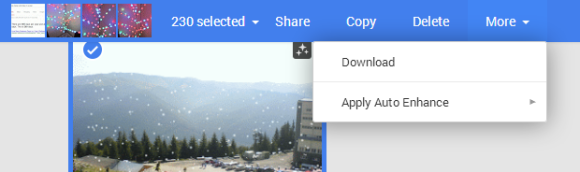
7. You'll get a Photos.zip archive with both photos and videos. The filename includes the type of AutoAwesome effect. The archive should also include the "year in review" video titled 2013-MOVIE.m4v.

Just because they're so nice, I decided to backup my Auto Awesome. Here's how to download them:
1. open this page: https://plus.google.com/photos/search/%23AutoAwesome (or go to Google+ Photos and search for #AutoAwesome)
2. click "show all" below the first photos from that page
3. select the first photo: mouse over the photo and click the tick icon.
4. use your browser's find-in-page feature (Ctrl+F or Command+F on a Mac) and search for from your circles. That's a different section which shows Auto Awesome photos from your circles and that's where your Auto Awesome gallery ends.
5. Shift+click the last photo above the "From your circles" section and you should see a message like "230 selected".
6. click "more" in the navigation bar and select "download".
7. You'll get a Photos.zip archive with both photos and videos. The filename includes the type of AutoAwesome effect. The archive should also include the "year in review" video titled 2013-MOVIE.m4v.


