Showing posts with label Google Photos. Show all posts

Camera Search Links in Google+ Photos

Donal Trung 7:50 AM Add Comment
Last year, I mentioned that you can search by camera in Google+ Photos. I tried searches like #canon, #iphone5s and they worked. Since then, Google added some search links to the photo viewer. When you open one of your photos, some of the EXIF values are linked: camera, camera make and lens.

Search for #canon and Google shows your photos taken with a Canon camera, as well as the photos from your circles. Search for #35mm and you'll get the photos taken with cameras that have 35mm lens.


The "date taken" value is also linked, but it doesn't send you to a list of search results. Instead, you can edit the date and change the time zone:

How to Download Auto Awesome Photos

Donal Trung 6:31 AM Add Comment
Auto Awesome is one of the best features of Google+ Photos. It's a good reason to upload your photos to Google+ instead of choosing a different service: you get something in return. Auto Awesome photos and videos use your photos and videos to create something new. Some of them improve your photos, others are funny, while some of them would normally require professional software.

Just because they're so nice, I decided to backup my Auto Awesome. Here's how to download them:

1. open this page: https://plus.google.com/photos/search/%23AutoAwesome (or go to Google+ Photos and search for #AutoAwesome)

2. click "show all" below the first photos from that page


3. select the first photo: mouse over the photo and click the tick icon.


4. use your browser's find-in-page feature (Ctrl+F or Command+F on a Mac) and search for from your circles. That's a different section which shows Auto Awesome photos from your circles and that's where your Auto Awesome gallery ends.


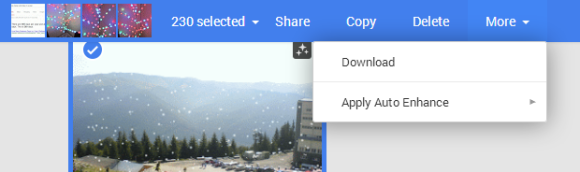
5. Shift+click the last photo above the "From your circles" section and you should see a message like "230 selected".


6. click "more" in the navigation bar and select "download".


7. You'll get a Photos.zip archive with both photos and videos. The filename includes the type of AutoAwesome effect. The archive should also include the "year in review" video titled 2013-MOVIE.m4v.

Google+ Stories

Donal Trung 6:33 AM Add Comment
Google+ Photos added a new feature called Stories. Google automatically groups some of your best photos and videos, based on the date and the place where they were taken, and creates animated stories you can edit and share with other people.

"Google+ Stories can automatically weave your photos, videos and the places you visited into a beautiful travelogue. No more sifting through photos for your best shots, racking your brain for the sights you saw, or letting your videos collect virtual dust. We'll just gift you a story after you get home. This way you can relive your favorite moments, share them with others, and remember why you traveled in the first place," explains Google.

Here's an example:


To find all the stories generated from your photos, go to Google+ Photos, click "More" next to "All photos" and select "Stories". They have pretty accurate titles like: "Friday afternoon in Istanbul", "Trip to Paris", "Weekend in Belfast".

There are many other new features in Google+:
* Auto Awesome Movies are now available on Android, iOS and the web, so lots more people will receive highlight reels of their photos and videos.

* You can now create animated GIFs and photobooth-style images on demand. Just tap the new plus button in Photos, and select either Motion or Mix. (Android only?)


* You can now browse your entire photo library, as well as your highlights, by date. Just drag the new scroll bar to move forwards or backwards in time.

* Really big photo libraries are now supported on Android, so you can access your many thousands of photos quickly and easily.

* You can now browse your entire photo library, as well as your highlights, by date. Just drag the new scroll bar to move forwards or backwards in time.

*  A new navigation menu makes it easier to switch between your favorite circles and communities, as well as other places in the app.

*  It's a lot easier to share content from your phone or tablet. To give it a try, just tap the new pencil icon at the bottom right of the stream.

*  The app menu now slides away as you move down the stream, letting posts fill the entire screen.

Gmail's New Interface for Inserting Photos

Donal Trung 5:53 AM Add Comment
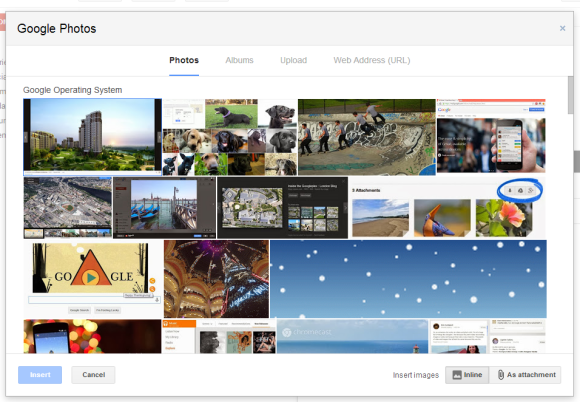
Gmail has a new interface for adding images to a message. When you click the "insert images" icon, Gmail now shows all the photos highlighted by Google+ Photos. You'll see all the photos that are displayed here: https://plus.google.com/photos, including Auto Backup photos from your desktop and mobile devices.


Google uses clever algorithms that find your best photos and place them in the "highlights" section, which is displayed by default when you visit Google+ Photos. Gmail only shows these photos, but you can click "X more" to show all the photos from an album (X is the number of photos).

After adding a photo, you can now resize it by dragging on any corner.


Gmail's dialog also includes a section for albums, so you can insert links to your Google+ Photos albums. "Inserted albums are shared via link. Anyone with the link can access the album," explains Google. You can also upload photos or paste URLs. By default, images are inserted inline, but you can also add them as attachments if you click "as attachment" next to "insert images".


"Whether it's photos of your hiking trip or a night out, sending photos to friends and family just got easier. Starting today, you can save time and insert your Auto Backup photos from your phone into Gmail messages on the web using the new Insert Photo button. When you click the button, you'll instantly access all the photos that are backed up from your mobile devices, starting with the most recent," informs Google.

Google+ Auto Backup Installer Links

Donal Trung 4:02 PM Add Comment
If you want to install the Google+ Auto Backup app for desktop without first installing Picasa, here are the direct links to the setup files:

Windows: https://dl.google.com/dl/edgedl/picasa/gpautobackup_setup.exe

Mac: https://dl.google.com/dl/edgedl/picasa/gpautobackup_setup.dmg


After installing the software in Windows, search for Auto Backup in the Start menu/screen, click "Google+ Auto Backup" and log in to your Google account.


"It's now easier than ever to back up all of your photos with Google+ Auto-backup, available with Picasa for Windows and Mac. Automatically sync photos from your desktop computer and any time that you connect a phone, camera or storage card to Google+," informs Google.

If you go to Google+ Photos, you might see this message and a download button: "Back up photos automatically from your computer. Automatically save your photos and videos online with Google+ Auto Backup. They'll be private to you until you choose to share them, and easy to get to from all your devices."


{ Thanks, Jérôme. }